Go beyond the Compose basics. Post Reels, Shorts and Stories, have Feedlio AI write a full post from one prompt, and add hashtags, library media and a first comment.
Follow along in the app. Tick each step off as you go.
STEP 1 of 7
Reels, Shorts & Stories
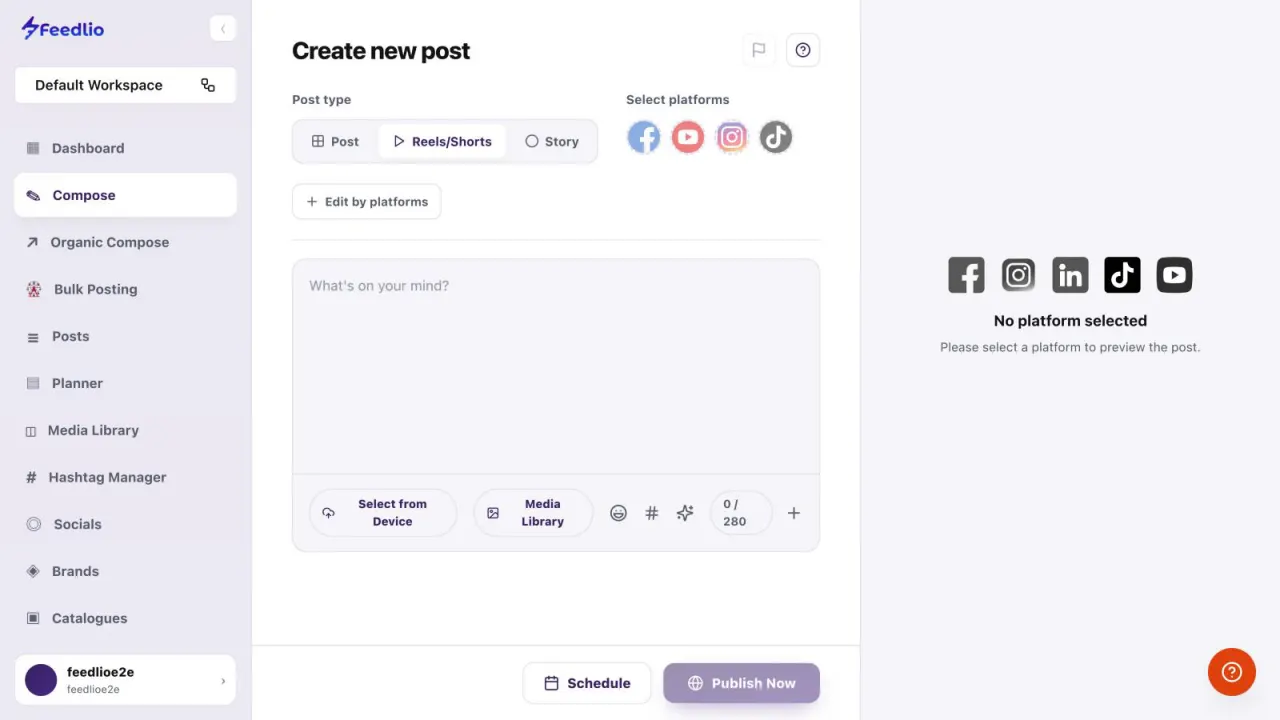
Under Post type, choose Reels/Shorts or Story. Select platforms then shows only the accounts that support that format, such as Facebook, YouTube, Instagram and TikTok for short videos.
Only matching accounts appear
Reels and Stories need media
Same editor, same preview
feedlio.io/composeClick to zoom
12
STEP 2 of 7
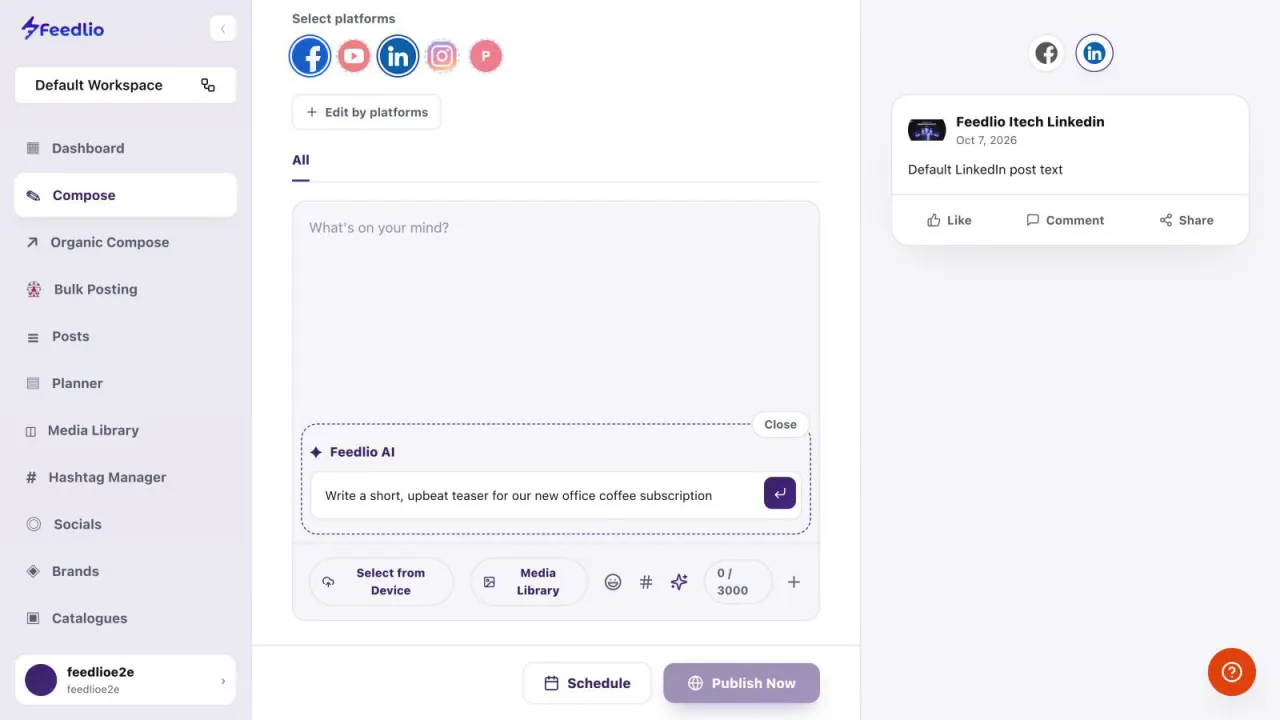
Prompt Feedlio AI
Starting from a blank editor? Click the ✨ icon to open Feedlio AI, describe the post you want, and press Enter.
feedlio.io/composeClick to zoom
STEP 3 of 7
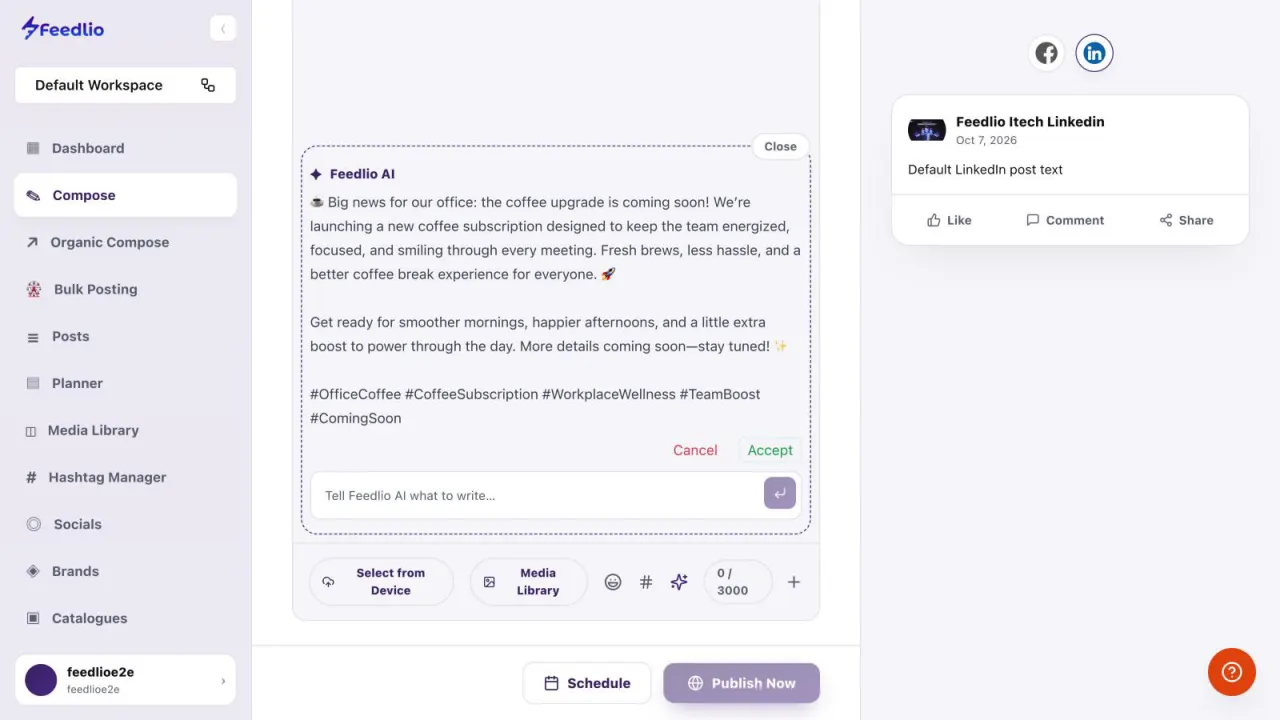
A full post in seconds
Feedlio AI writes a complete post with emojis and hashtags. Read it through, then click Accept to drop it into the editor, or Cancel to discard it.
Say what you want.
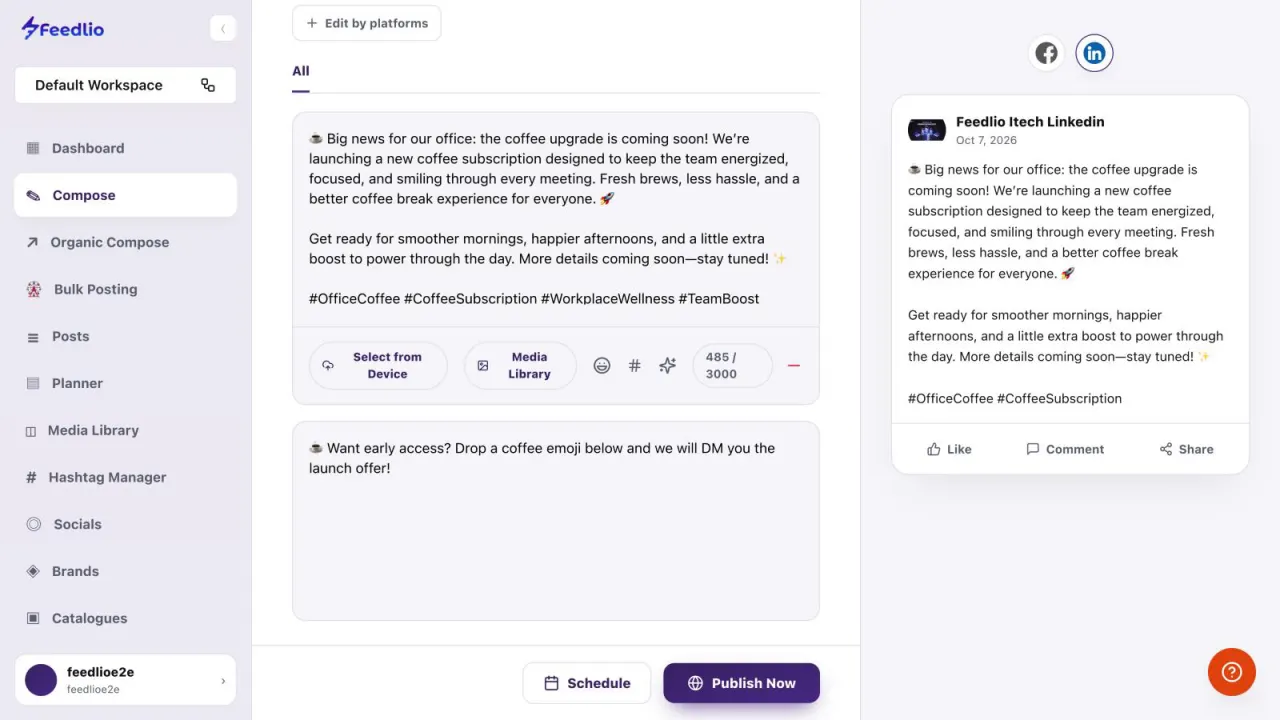
A prompt like Write a short, upbeat teaser for our new office coffee subscription gives the AI the length, tone and topic in one line.
feedlio.io/composeClick to zoom
12
STEP 4 of 7
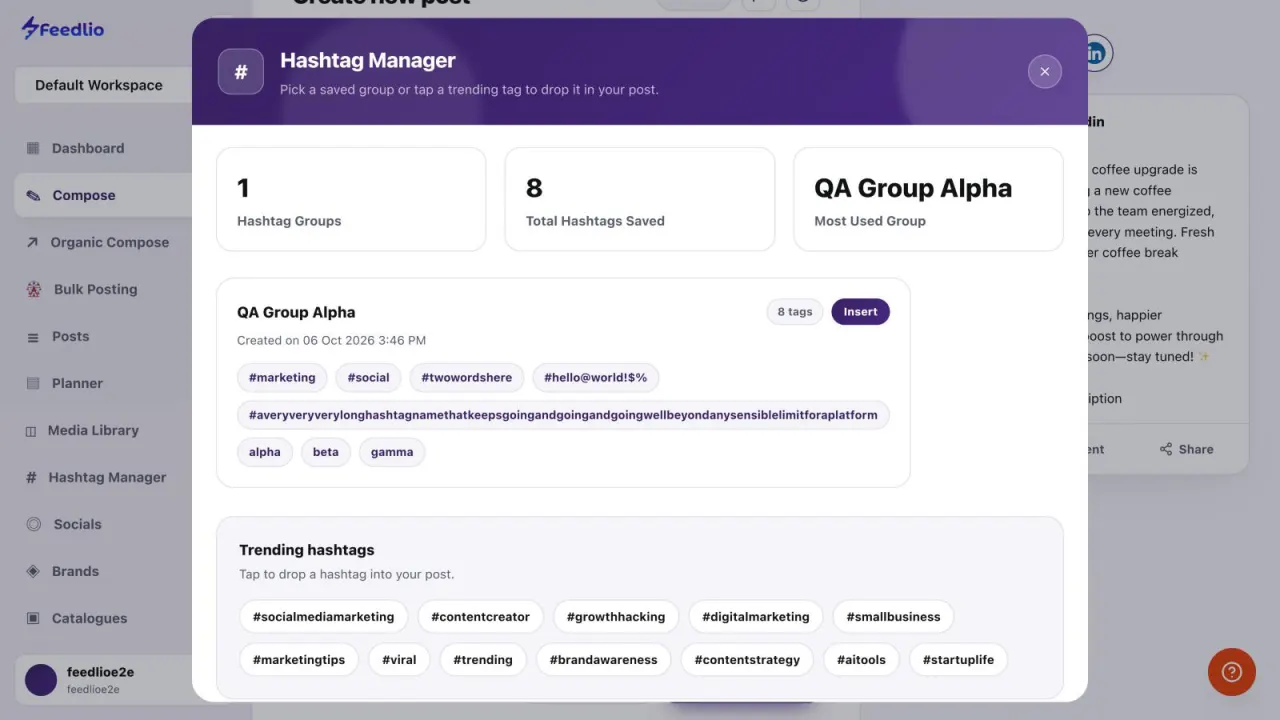
Insert hashtag groups
Click the # icon to open the Hashtag Manager. Click Insert on a saved group to add all of its tags at once.
Under Trending hashtags, tap any tag to drop it into your post.
feedlio.io/composeClick to zoom
STEP 6 of 7
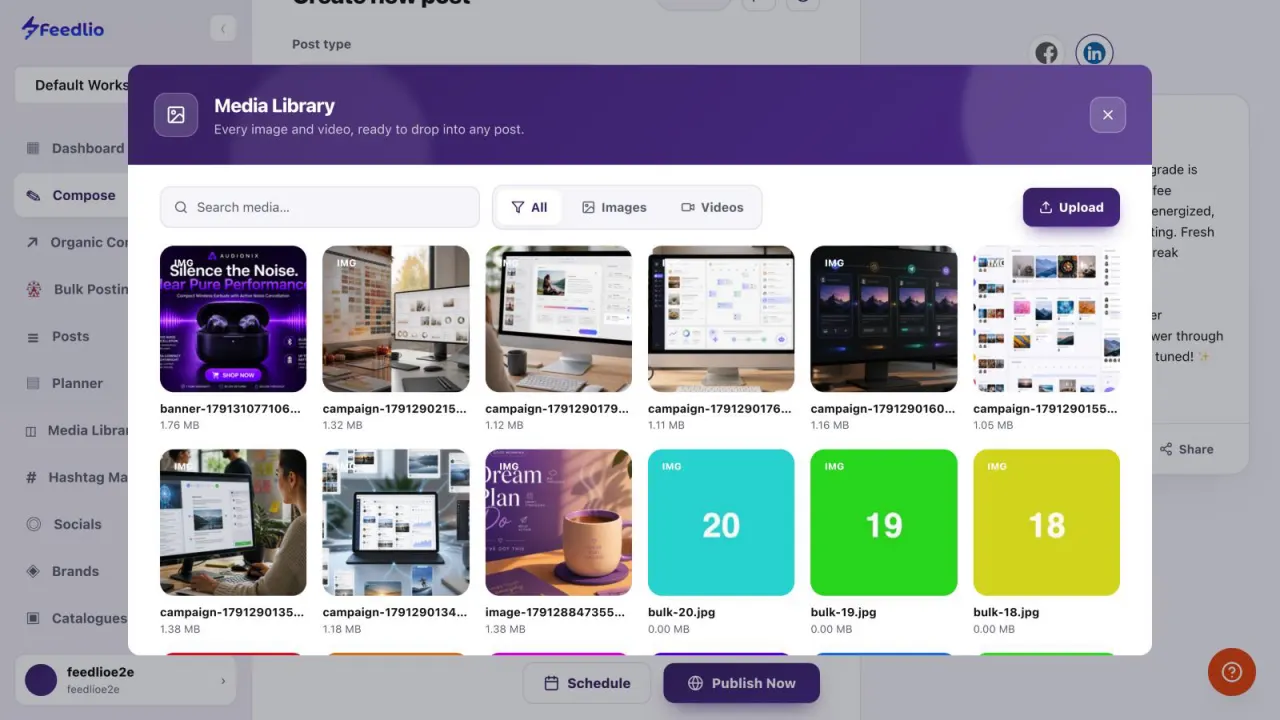
Pick from your library
Click Media Library to attach images or videos you've uploaded or created with Feedlio AI. Search, filter by Images or Videos, or click Upload to add something new.
Search & filter by type
Upload new files
AI images land here too
feedlio.io/composeClick to zoom
STEP 7 of 7
Add a first comment
Click the + button at the end of the toolbar to add a first comment. Feedlio posts it right after your post goes live, which suits links, extra hashtags or a call to action.
feedlio.io/composeClick to zoom
PRO TIP
Watch the counter
Keep an eye on the character counter. It uses the limit of the platforms you selected, so you always know how much room is left.
feedlio.io/composeClick to zoom
Recap
Power user!
Switch post types for Reels and Stories, prompt Feedlio AI to write for you, insert hashtag groups, pick media from your library, and add a first comment.
Only accounts that support that format. When you change the post type, the list under Select platforms updates to match.
Does Feedlio AI replace my text straight away?
No. It shows its suggestion first. Click Accept to put it in the editor, or Cancel to discard it.
Where do hashtag groups come from?
From the Hashtag Manager. Save groups there, then insert them in Compose with the # icon.
When is the first comment posted?
Right after your post goes live. To remove the first comment box before publishing, click the minus button.
Which character limit does the counter use?
The limit of the platforms you selected. With Facebook and LinkedIn both selected, for example, it counts against 3000.
Video transcript
Read the full narration
You already know the basics of Compose. Now let's level up with Reels and Stories, writing a full post from a simple AI prompt, inserting saved hashtags, picking media, and adding an automatic first comment.
Choose Reels or Shorts, or Story, at the top. Feedlio instantly shows only the accounts that support that format, like Facebook, YouTube, Instagram and TikTok for short videos.
Starting from a blank editor? Open Feedlio AI and simply describe the post you want, then press enter.
In seconds, Feedlio AI writes a complete post, with emojis and relevant hashtags. Review it, then click Accept to drop it into your editor.
Click the hashtag icon to open your Hashtag Manager. Insert a whole saved group with a single click.
Or tap any trending hashtag to add it to your post on the spot.
Click Media Library to attach images or videos you've already uploaded, or that you created with Feedlio AI. Search, filter, or upload something new.
Click the plus button to add a first comment. Feedlio posts it right after your post goes live. It's perfect for links, extra hashtags, or a call to action.
Pro tip: keep an eye on the character counter. It automatically uses the limit of your selected platforms, so your post is never cut off.
Recap: switch post types for Reels and Stories, prompt Feedlio AI to write for you, insert hashtag groups, pick media from your library, and add a first comment.
Next level unlocked! In the next video, we'll build a complete post, banner and all, with Organic Compose.

 12
12