Follow along in the app. Tick each step off as you go.
STEP 1 of 6
Tabs by status
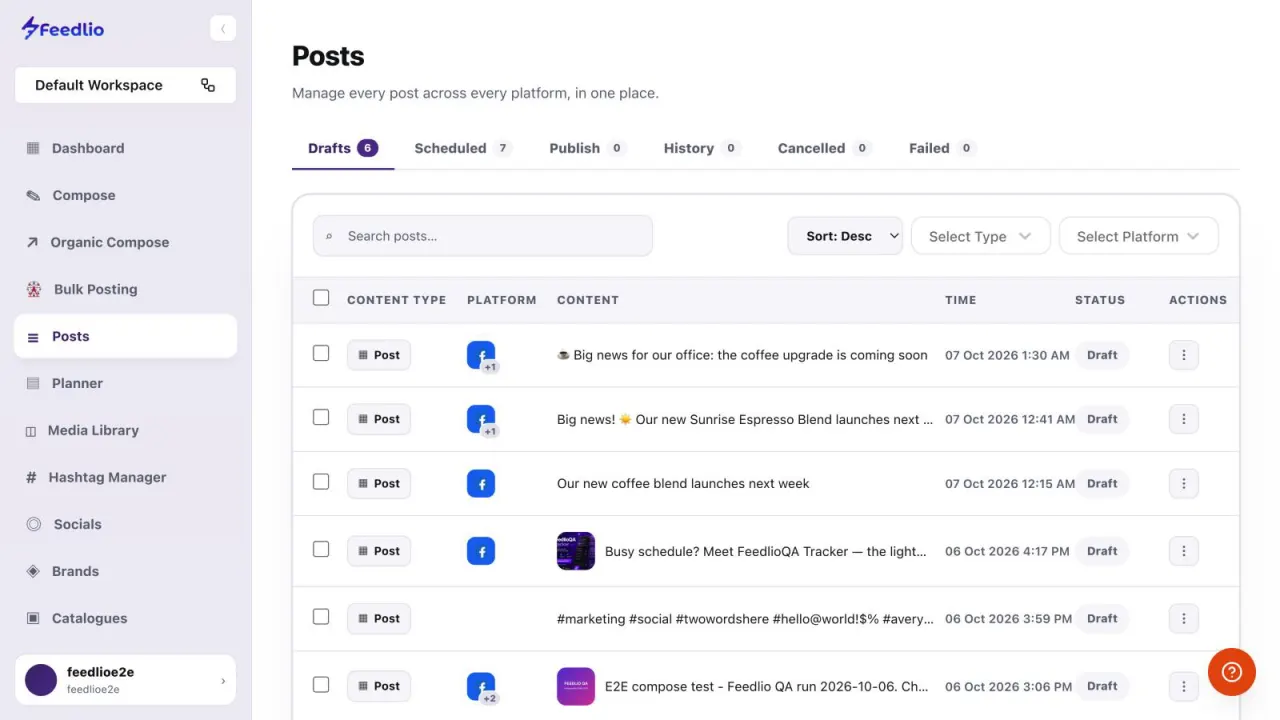
Click Posts in the left sidebar. The tabs sort every post by status: Drafts, Scheduled, Publish, History, Cancelled and Failed. The badge on each tab shows how many posts it holds.
Drafts & Scheduled
Publish & History
Cancelled & Failed
feedlio.io/postsClick to zoom
STEP 2 of 6
Search & filter
Type in Search posts… to find a post by its text. Use Sort to show newest or oldest first, and narrow the list with Select Type and Select Platform.
feedlio.io/postsClick to zoom
12
STEP 3 of 6
Everything at a glance
Each row shows the content type, the platforms it goes to, a preview of the text, the time and its status. Tick the checkboxes to select several posts at once.
feedlio.io/postsClick to zoom
STEP 4 of 6
Draft actions
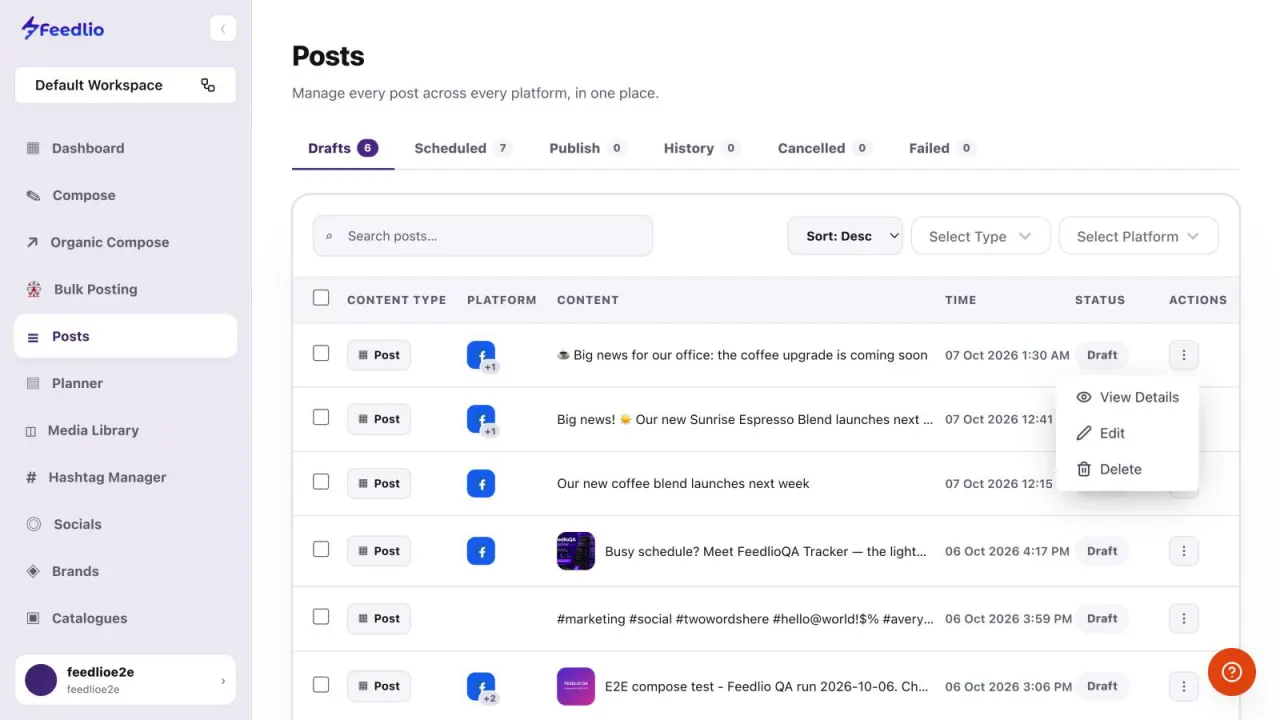
Click the ⋮ menu on a draft. Choose View Details to read it, Edit to keep working on it in Compose, or Delete to remove it.
feedlio.io/postsClick to zoom
STEP 5 of 6
Scheduled post actions
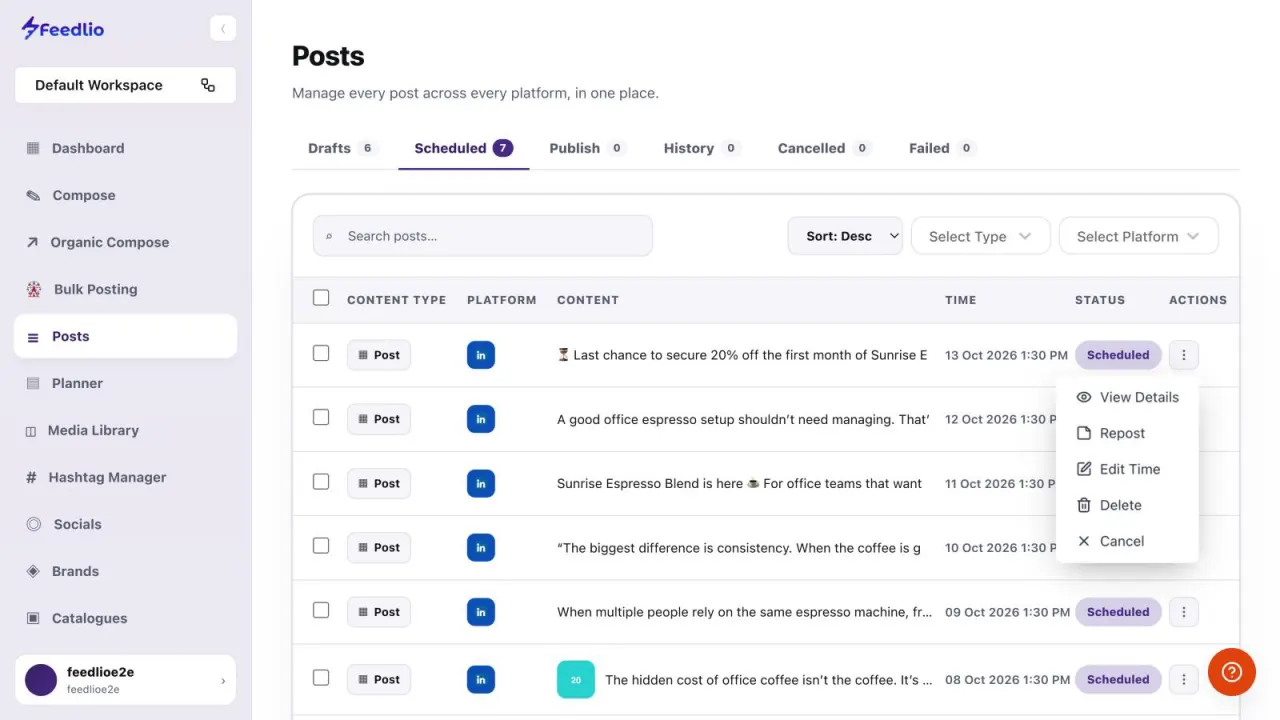
Scheduled posts have more options in the ⋮ menu. Use Repost to post it again, Edit Time to change when it goes out, or Cancel to stop it from being published.
Prefer a calendar?
The Planner shows the same scheduled posts on a week or month calendar.
Repost to publish again
Edit Time to reschedule
Cancel to stop it going out
feedlio.io/postsClick to zoom
STEP 6 of 6
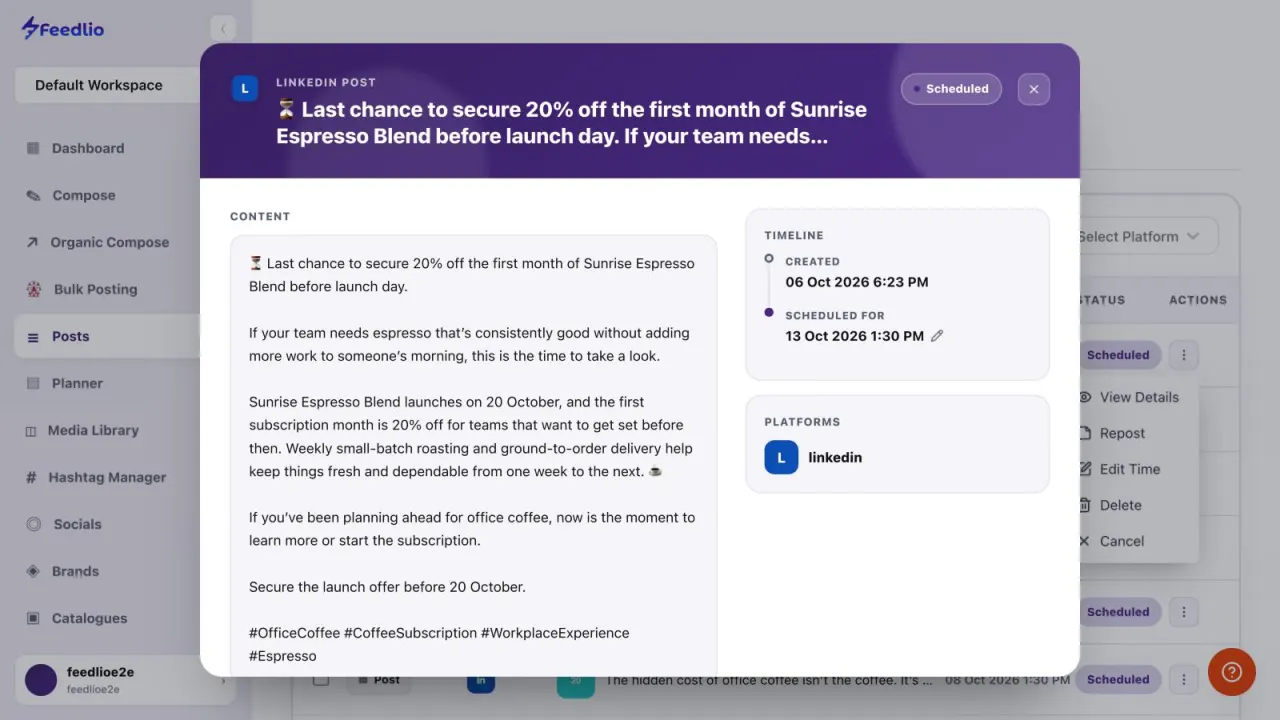
View details
View Details opens the full post. The Timeline shows when it was created and when it's scheduled for, and Platforms lists where it will be published. Click the pencil icon next to the time to change it.
feedlio.io/postsClick to zoom
Recap
Queue under control
Switch tabs by status, search and filter, use the row's ⋮ menu to view, edit, repost, reschedule, cancel or delete, and check the timeline in View Details.
Open the Drafts tab, click the ⋮ menu on the row and choose Edit. The draft opens in Compose so you can keep writing.
How do I change when a post goes out?
On the Scheduled tab, open the row's ⋮ menu and choose Edit Time. You can also click the pencil icon next to the scheduled time in View Details.
What does Cancel do?
Cancel stops a scheduled post from going out. Use it when you want to hold a post back.
Can I act on several posts at once?
Yes. Tick the checkbox on each row you want, or the checkbox in the header to select them all.
Video transcript
Read the full narration
The Posts page is your control center for every post across every platform. Let's look at the tabs, filters, and the actions you can take on each post.
Open Posts from the sidebar. Tabs sort every post by status: drafts, scheduled, published, history, cancelled and failed, each with a live count.
Search by text, sort newest or oldest first, and filter by content type or platform.
Each row shows the content type, the platforms it goes to, a preview of the text, the time, and its status. Tick the checkboxes to select several posts at once.
Open the three-dot menu on a draft to view its details, continue editing it in Compose, or delete it.
For scheduled posts, you can also repost, edit the publish time, or cancel it so it never goes out.
View Details shows the full post, a timeline of when it was created and when it's scheduled for, and the platforms it will be published to. Click the pencil icon to change the time.
Recap: switch tabs by status, search and filter, open the row menu to view, edit, repost, reschedule, cancel or delete, and check the timeline in View Details.
Now nothing slips through the cracks. Next, let's plan visually with the Planner calendar.